

Digital advertising has transformed how businesses connect with their target audience. From small startups to global enterprises, paid advertising has become a powerful driver of visibility, traffic, and conversions. Among the many advertising platforms available, Google Ads Manager stands out as one of the most effective tools for running and managing large-scale ad campaigns.
Whether you are a digital marketer, a freelancer, or a business owner, understanding how to use Google Ads Manager effectively can give you a significant competitive edge. This comprehensive guide will help you learn how the platform works, its features, benefits, and advanced strategies to maximize your return on investment (ROI).
What Is Google Ads Manager?
Google Ads Manager is a powerful platform that enables advertisers to manage multiple ad accounts in one place. It is particularly useful for agencies, large advertisers, or businesses that run multiple campaigns across different brands or clients.
Unlike the standard Google Ads interface, Google Ads Manager provides advanced features such as centralized billing, granular access control, and easier reporting across multiple accounts.
 Key Features of Google Ads Manager:
- Centralized account management
- Multi-account reporting
- Advanced user access controls
- Shared budgets and billing
- Integration with other Google tools like Google Analytics
- Efficient campaign performance tracking
Why Businesses Use Google Ads Manager
Digital marketers prefer Google Ads Manager because it simplifies the complexity of handling multiple campaigns at scale. Here are a few compelling reasons why businesses rely on this platform:
- Centralized Campaign Management
Instead of logging in to multiple accounts separately, advertisers can manage all their campaigns from a single dashboard. - Improved Collaboration
Teams and agencies can grant different levels of access to clients, managers, or employees without sharing sensitive credentials. - Consolidated Billing
Billing is streamlined by linking multiple accounts to a single payment profile. - Better Optimization
With advanced reporting and analytics, advertisers can make faster and more informed decisions. - Scalability
As businesses grow, they can easily add more accounts and campaigns without disrupting existing workflows.
How Google Ads Manager Works
Understanding how the platform functions is essential for effective campaign management. Google Ads Manager operates as a “manager account” that connects and controls multiple individual Google Ads accounts.
Structure:
- Manager Account (MCC): The top-level account that controls everything.
- Sub-accounts: Individual Google Ads accounts connected to the manager.
- Campaigns: The actual advertising campaigns run under each sub-account.
Each level can be managed independently, but the manager account gives a full overview of performance and settings.
Setting Up a Google Ads Manager Account
Creating a Google Ads Manager account is straightforward. Follow these steps:
- Go to the official Google Ads Manager sign-up page.
- Sign in using your Google account or create a new one.
- Click on “Create a manager account.”
- Fill in the required details (business name, country, time zone, currency).
- Link existing Google Ads accounts or create new ones.

Once your account is set up, you’ll have access to a comprehensive dashboard where you can manage all campaigns.
Navigating the Google Ads Manager Dashboard
The dashboard is designed for ease of use but offers a deep level of control. Key sections include:
- Overview: A snapshot of performance across all accounts.
- Accounts: A list of all linked accounts with quick performance metrics.
- Campaigns: A centralized place to view and edit campaigns.
- Reports: Customizable performance reports.
- Billing: Manage payments and invoices.
- Tools and Settings: Access to advanced features like conversions, audiences, and integrations.
Efficient navigation of this dashboard is crucial for smooth campaign execution.
Understanding Campaign Types in Google Ads Manager
One of the advantages of Google Ads Manager is its support for multiple campaign types. Each campaign type serves a different purpose:
- Search Campaigns
Appear on Google search results pages when users search for specific keywords. - Display Campaigns
Show visually appealing ads on websites and apps in the Google Display Network. - Video Campaigns
Run ads on YouTube and across Google video partners. - Shopping Campaigns
Ideal for e-commerce businesses to display product ads with pricing and images. - Performance Max Campaigns
An AI-driven campaign type that delivers ads across all Google channels for maximum reach. - App Campaigns
Promote mobile apps on Google Search, Play Store, YouTube, and Display Network.
Understanding which campaign type fits your business objective is key to success.
Keyword Strategy for Google Ads Campaigns

Keywords are the foundation of search advertising. A strong keyword strategy ensures your ads are shown to the right audience.
Types of Keywords:
- Broad Match: Reaches a wide audience but may include irrelevant searches.
- Phrase Match: Targets searches that include the exact phrase or a close variation.
- Exact Match: Delivers the most precise targeting.
- Negative Keywords: Excludes unwanted search queries.
A balanced mix of these keyword types improves both reach and relevance.
Tips for Keyword Optimization:
- Use keyword research tools to find high-volume, low-competition keywords.
- Group keywords into tightly themed ad groups.
- Regularly review search term reports to refine targeting.
- Add negative keywords to reduce wasted ad spend.
Ad Copywriting Best Practices
Compelling ad copy is essential to increase click-through rates (CTR) and conversions. Since ad space is limited, your message should be clear, relevant, and action-oriented.
Key Elements of Effective Ad Copy:
- Headline: Captures attention quickly.
- Description: Communicates value and benefits.
- Call-to-Action (CTA): Encourages immediate engagement.
- Ad Extensions: Adds extra information like site links or phone numbers.
Example of a Strong Search Ad:
- Headline: “Affordable Digital Marketing Services”
- Description: “Grow your business online with expert ad strategies. Get more traffic and sales today.”
- CTA: “Book a Free Consultation”
Targeting and Audience Segmentation
Reaching the right audience is as important as creating the ad itself. Google Ads Manager provides several targeting options to help you narrow down your audience:
- Demographics: Age, gender, parental status, income level
- Interests: Based on user browsing behavior
- Geographic Targeting: Target users by location
- Remarketing: Target users who previously interacted with your site
- In-market Audiences: Target people actively searching for your product or service
Segmenting your audience allows for more personalized and effective campaigns.
Conversion Tracking and Measurement
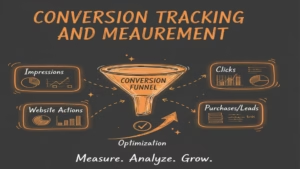
Tracking performance is crucial to understanding the success of your campaigns. Conversion tracking allows you to measure actions like purchases, form submissions, downloads, or calls.
How to Set Up Conversion Tracking:
- Access the “Tools and Settings” menu.
- Select “Conversions.”
- Create a new conversion action.
- Add the tracking code (or use Google Tag Manager).
- Verify and monitor results.
Tracking ensures you can attribute revenue or leads directly to your ad spend.
Budgeting and Bidding Strategies
An effective budget and bidding strategy helps you get the most out of your ad spend. Google Ads offers multiple bidding strategies based on your goals.
Popular Bidding Strategies:
- Manual CPC: Control over maximum cost-per-click.
- Enhanced CPC: Automated bid adjustments to maximize conversions.
- Target CPA: Bids are optimized to achieve a specific cost per acquisition.
- Target ROAS: A bidding strategy designed to maximize the revenue generated for every dollar spent on ads.
- Maximize Conversions: Fully automated bidding for best results.
Budgeting Tips:
- Start with a daily budget aligned with your goals.
- Test campaigns with smaller budgets before scaling.
- Regularly monitor performance to avoid overspending.
- Allocate more budget to high-performing campaigns.
A/B Testing and Campaign Optimization

A/B testing (also known as split testing) involves running multiple versions of an ad to determine which performs better. This process can help refine messaging, targeting, and design elements.
What to Test:
- Headlines and descriptions
- Landing page content
- CTA wording
- Ad extensions
- Keyword match types
By continuously testing and optimizing, you can reduce costs and increase conversion rates over time.
Integrating Google Ads Manager with Google Analytics
Integration with Google Analytics allows for deeper insights into user behavior after clicking your ads. You can analyze bounce rates, session duration, conversion paths, and more.
Benefits of Integration:
- Enhanced performance reporting
- Better audience insights
- More accurate attribution modeling
- Seamless remarketing opportunities
This data-driven approach helps you make smarter advertising decisions.
Remarketing Strategies
Remarketing allows advertisers to re-engage users who have previously visited their website but didn’t convert. These users are often more likely to convert upon subsequent interactions.
Remarketing Types:
- Standard Remarketing: Show ads to past visitors as they browse the web.
- Dynamic Remarketing: Show personalized ads based on the products or services they viewed.
- Video Remarketing: Target users who interacted with your videos or channel.
- Customer List Remarketing: Use customer data to retarget existing leads.
Remarketing campaigns typically have a lower cost per conversion and higher ROI.
Reporting and Analytics in Google Ads Manager
The platform offers powerful reporting features that enable advertisers to analyze performance in detail.
Key Metrics to Monitor:
- Impressions
- Clicks
- Click-Through Rate (CTR)
- Conversion Rate
- Cost Per Click (CPC)
- Cost Per Acquisition (CPA)
- Return on Ad Spend (ROAS)
Custom Reports:
You can build custom dashboards and schedule automated reports to track performance over time. This is especially helpful for agencies managing multiple clients.
Common Mistakes to Avoid in Google Ads Manager
Even experienced advertisers can make costly mistakes. Here are some frequent mistakes and effective ways to prevent them.
Not Using Negative Keywords
This can result in wasted ad spend on irrelevant clicks.
- Poor Landing Page Experience
If the landing page isn’t optimized, users won’t convert. - Ignoring Mobile Users
A large portion of traffic comes from mobile devices; ensure mobile optimization. - Setting and Forgetting Campaigns
Continuous monitoring is essential for sustained performance. - Not Aligning Goals with Campaign Strategy
Each campaign should have a clear objective and matching strategy.
Advanced Strategies for Experienced Marketers
If you’ve mastered the basics, you can explore advanced strategies to maximize impact.
- Smart Bidding with Machine Learning: Let Google’s AI optimize your bids for maximum conversions.
- Audience Layering: Combine multiple targeting options for laser-focused campaigns.
- Ad Scheduling: Show ads at the times your audience is most active.
- Geo-Fencing: Target users within a specific geographic radius.
- Custom Intent Audiences: Reach users based on their purchase intent.
These strategies can significantly boost your ROI when executed correctly.
Google Ads Manager vs. Standard Google Ads
| Feature | Google Ads | Google Ads Manager |
| Account Management | Single account | Multiple accounts |
| Billing | Per account | Centralized |
| Reporting | Basic | Advanced, cross-account |
| Access Control | Limited | Multiple access levels |
| Best For | Small businesses | Agencies & large advertisers |
If you’re managing multiple campaigns or clients, Google Ads Manager provides the scalability and efficiency you need.
How Agencies Use Google Ads Manager
Digital marketing agencies rely on Google Ads Manager to manage advertising for multiple clients efficiently. With centralized access and reporting, agencies can:
- Create separate accounts for each client
- Monitor performance across all campaigns
- Control access for different team members
- Provide detailed performance reports to clients
- Optimize campaigns at scale
This makes it easier to deliver results and maintain transparency.
Future Trends in Google Ads

As digital marketing evolves, so does Google Ads. Here are some trends to watch:
- Automation and AI: Automated bidding and smart campaigns will continue to grow.
- Privacy and Data Control: Advertisers must adapt to new privacy regulations.
- Video and Visual Ads: Video advertising will dominate engagement strategies.
- Voice Search Optimization: Optimizing ads for voice search will become more common.
- Cross-Channel Integration: Seamless integration with other marketing channels will be key.
Staying updated with these trends will help you remain competitive.
Best Practices for Maximum ROI
To get the best results from Google Ads Manager:
- Align your campaigns with business goals.
- Use a mix of campaign types to diversify reach.
- Regularly analyze and optimize performance.
- Leverage automation without losing manual control.
- Test new strategies and ad formats.
A data-driven, adaptive approach ensures long-term success.
Conclusion
Google Ads Manager is more than just a tool—it’s a complete advertising management ecosystem designed to help businesses and agencies scale their campaigns efficiently. From keyword research to audience targeting, bidding strategies to advanced reporting, it offers everything needed to run high-performance advertising campaigns.
By mastering Google Ads Manager, you can improve your advertising efficiency, lower costs, and increase your conversions and revenue. Whether you’re new to paid advertising or looking to refine your strategy, this platform offers the flexibility, power, and insight required to succeed in today’s competitive digital landscape.